How to Save Phone Battery on the Trail
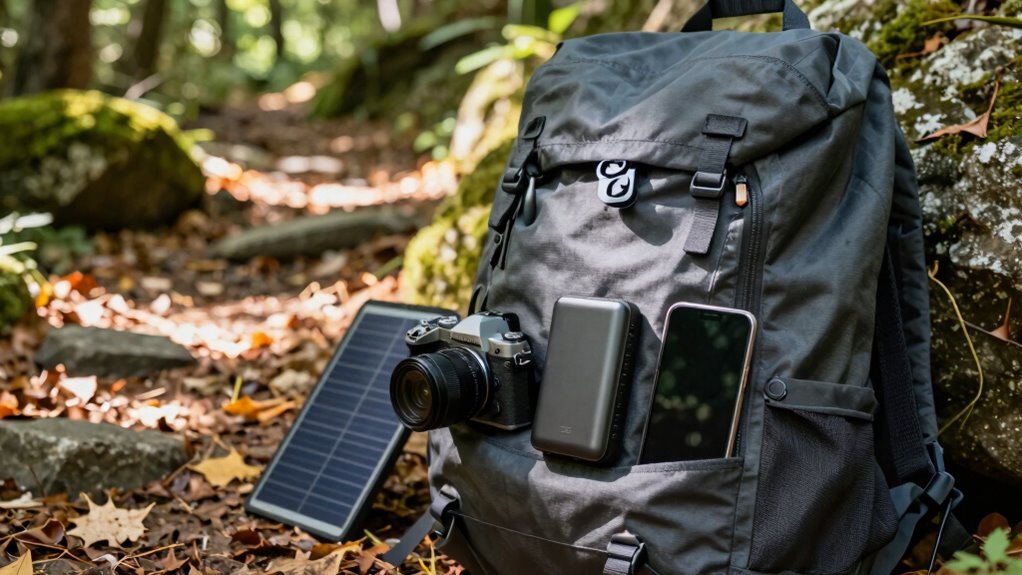
To save phone battery on the trail, start by reducing screen brightness and turning off Wi-Fi and Bluetooth. These settings drain power quickly, and conserving battery life is crucial when you’re far from charging options.
Keep your phone close to your body, such as in an inner jacket pocket, to protect it from cold temperatures. Cold weather significantly reduces battery performance, so warmth helps maintain charge.
Enable Battery Saver mode early and set a short screen timeout to minimize power use. Download maps and trail information ahead of time to avoid searching for signals, which also saves phone battery on the trail.
Lower Screen Brightness to Conserve Power
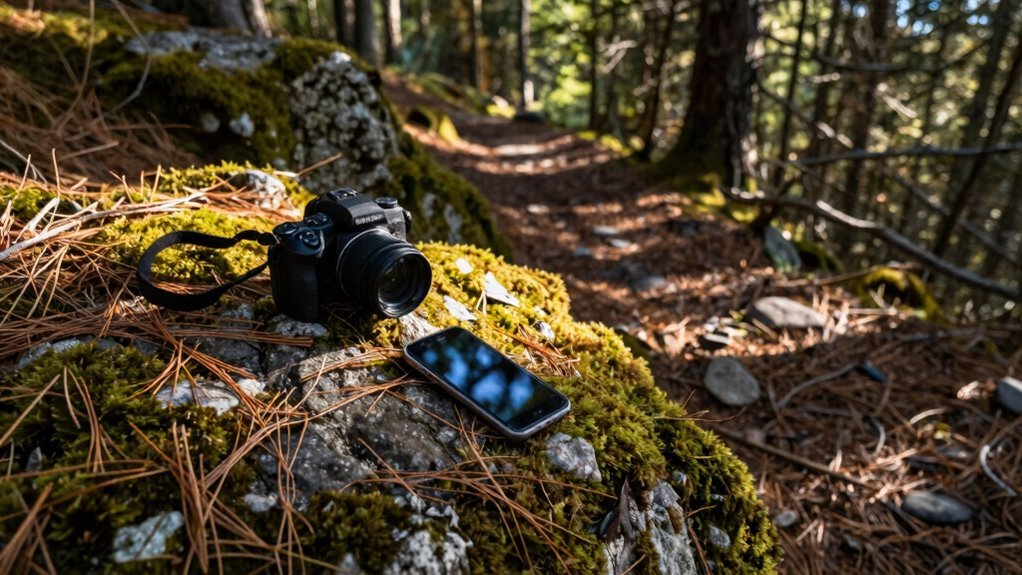
Dial down that glow and give your phone’s battery a break—brighter isn’t always better, especially when you’re miles from a charger.
You’re not starring in a sci-fi movie, so dim that screen and save the drama for the trail.
Brightness eats power fast, and maxing it out drains juice quicker than sunshine evaporates morning dew.
Match your screen to the sky: lower indoors, up slightly in sunlight.
OLED? Awesome—lower brightness slashes power even more, especially with dark mode cranked up on sunny days.
Auto-brightness is your buddy, adjusting on the fly so you don’t waste energy.
Built-in light sensors detect ambient light levels and help optimize screen brightness for both visibility and efficiency.
And hey, less glow means less heat, which keeps your battery from panting like a tired pup.
Simple tweak, big payoff.
You’ll last longer than your snacks—and that’s saying something.
Enable Battery Saver Mode Early
When the trail calls and your phone’s battery life is on the line, flipping on Battery Saver Mode right from the start is like giving your device an energy drink with staying power.
You’ll stretch every drop of charge, especially when outlets are miles away.
Whether you’re on Android or iPhone, turning it on early keeps your phone alive longer—no heroic last-1% efforts needed.
- Flip it on at the trailhead – Don’t wait until your battery’s gasping; start strong.
- Let Adaptive Power help – On newer iPhones, it learns your habits and slims down background tasks automatically.
- Keep GPS running – Exclude your navigation app from restrictions so you don’t get *kind of* lost in the woods.
Bonus? On Android, Extreme Saver Mode practically puts your phone on life support—minus the drama.
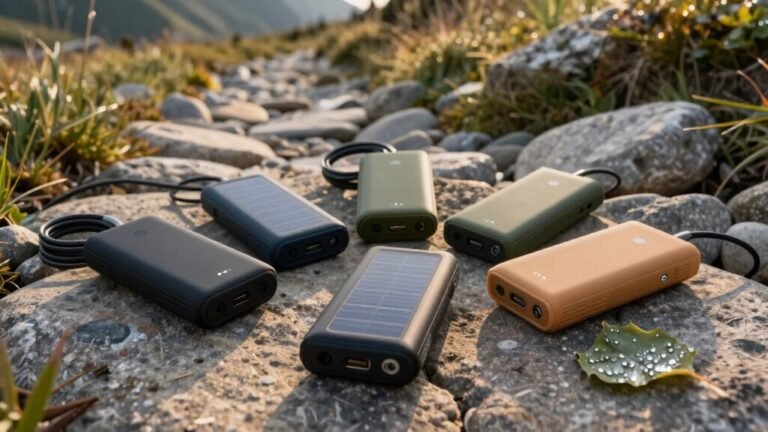
Bring along an auxiliary battery with at least 5,000 mAh capacity to ensure you can recharge when needed.
Turn Off Bluetooth and Wi-Fi When Not in Use
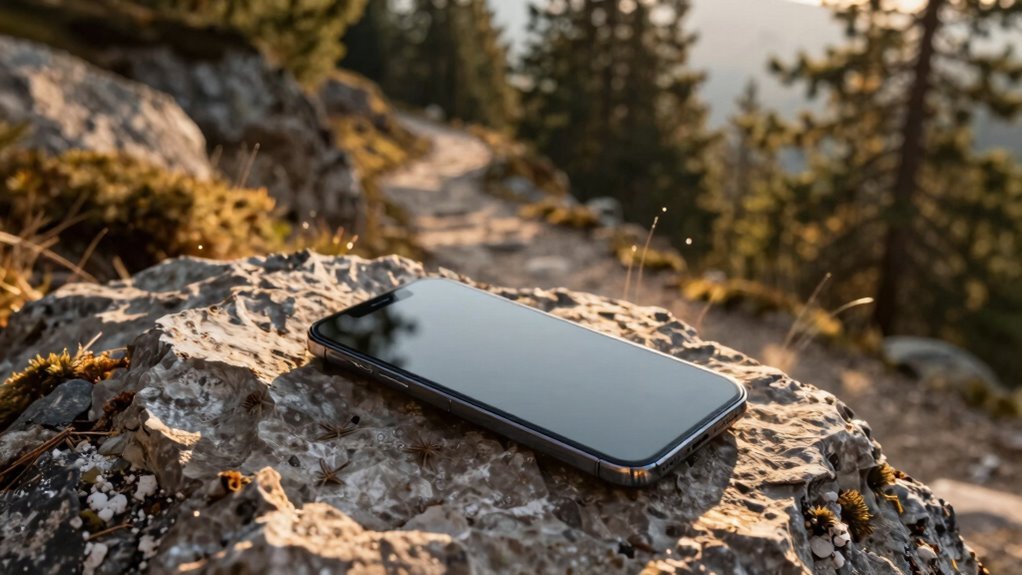
You’ve already stretched your battery by switching on power-saving mode at the trailhead, so now let’s tighten the lid on other sneaky energy leaks—starting with Bluetooth and Wi-Fi.
Sure, Bluetooth sips power—especially BLE tech—but leaving it on when you’re not using wireless headphones or syncing devices is like leaving a faucet dripping.
Why waste 1.8% when you could save it for an essential map check later?
Wi-Fi’s a bigger hog, especially when it’s hunting for signals that aren’t there.
And unlike Bluetooth, it doesn’t play nice in dead zones.
Think of your phone like a hiker: it shouldn’t carry unnecessary weight.
Turn off what you’re not using.
You’ll hike farther, stay connected longer, and still have juice to snap that epic summit selfie.
Smart little moves, big payoff.
BLE uses a sleep mode to minimize energy use while staying connected.
Disable Location Services for Non-Essential Apps
Sometimes, your phone acts like an overeager detective, constantly tracking your every move—even when you’re just hiking and not solving crimes.
That GPS chip guzzles power, especially when apps sneakily use it in the background.
You don’t need your weather app logging your trail coordinates, and turning off access helps save serious juice.
Plus, it keeps your data private—double win!
Here’s how to take control:
- On iPhone or Android: Go to Settings > Location (or Privacy) and set non-essential apps to *While Using* or *Never*.
- Turn off system extras like ads, significant locations, or location suggestions—they’re battery hogs.
- Check battery usage to spot sneaky apps draining power and shut them down.
You’ll hike longer, worry less, and keep Big Brother out of your backpack. Now *that’s* trail-smart!
Limit Background App Refresh
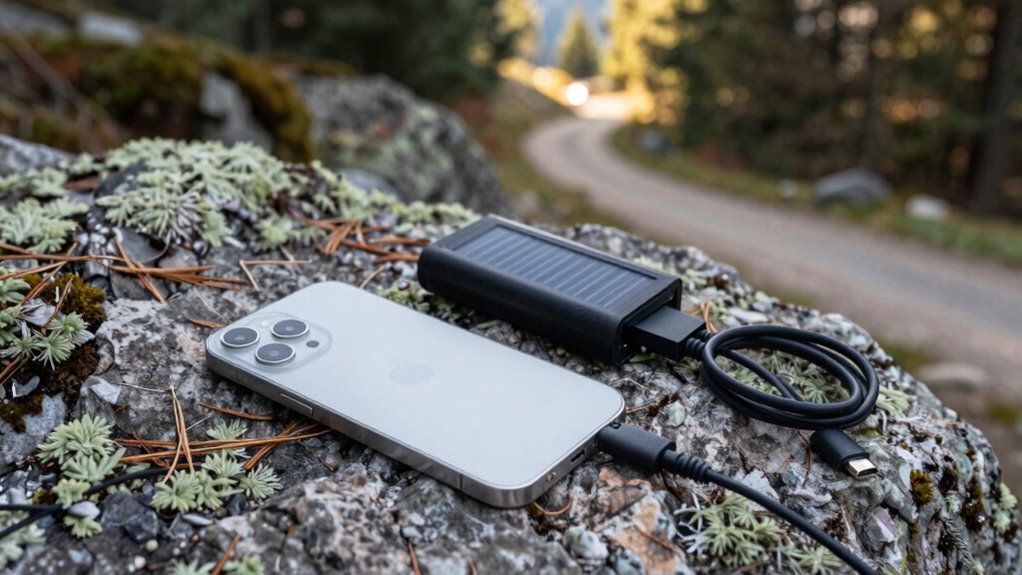
Ever wonder why your phone dies halfway up the trail, even when you haven’t touched it all day?
Blame background app refresh—those sneaky apps guzzling power while you hike.
Social media, news, and email apps constantly sync, ping servers, and track your location, even when closed.
One news app once used 51% battery in a day with just two minutes of screen time—yikes!
The fix? Turn it off.
On iPhone, go to Settings > General > Background App Refresh and disable it or limit to Wi-Fi.
Android users, head to Settings > Apps > [app] > Mobile data & Wi-Fi and block background data.
You won’t break anything—just maybe a tiny delay when opening apps.
Use Low Power Mode for an automatic cut-off.
Your phone (and your hike) will thank you.
Use Airplane Mode in Low-Signal Areas
Gliding through the woods with your phone in your pocket, you’re probably not thinking about radio waves—but your device is working overtime trying to stay connected.
In low-signal areas, that constant search for service can drain your battery faster than a bear raiding a snack bag.
Flip on airplane mode and give your phone a break.
Here’s why it’s a trail win:
- Saves serious power – No more battery-burning attempts to find cell towers that aren’t there.
- Charges faster – Fewer background tasks mean more energy goes straight to recharging.
- Keeps offline tools working – Your downloaded maps and tunes? Still fully accessible, no signal required.
You’ll still get full use of essential features without the energy waste.
Think of it as a spa day for your phone—relaxing, revitalizing, and totally low-maintenance.
Download Maps and Content Before You Go
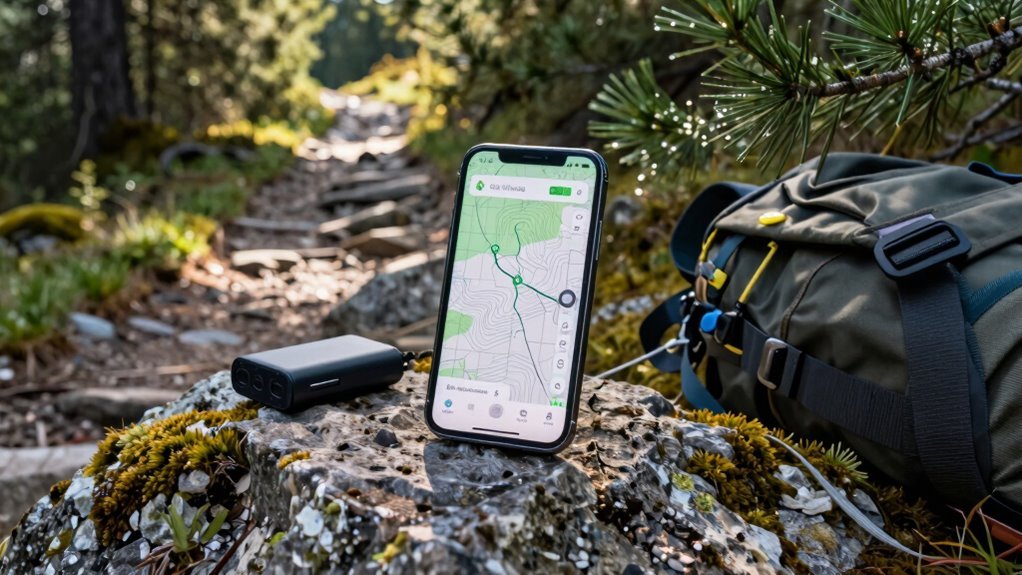
What if you could explore the wildest trails without worrying about your phone gasping for power? You can—by downloading maps and content before you go.
Instead of draining battery searching for signals, load apps like Organic Maps or Gaia GPS at home.
They let you save detailed offline maps for hiking, biking, or wandering without Wi-Fi.
Google Maps works too—just tap and download your route.
These offline maps are small, smart, and ready when you are.
You’ll skip frustrating loading circles and data hunts in the middle of nowhere.
Plus, no surprise battery crashes!
Just don’t forgot: offline doesn’t mean indestructible.
Always pack a paper map and compass, because even the best tech can glitch.
Now, isn’t that peace of mind worth a few minutes of prep work?
Your future trail-self will high-five you.
Keep Your Phone Warm in Cold Weather
You’ve already saved your phone’s battery by loading up maps before heading out, but out on the trail, cold weather can still sneak in and sap its power fast.
Don’t let Jack Frost kill your juice—keep your phone cozy like it’s sipping hot cocoa by a fire.
Here’s how:
- Stash it close: Keep your phone in an inner jacket or base layer pocket, snug against your body—your natural heater beats any charger in a blizzard.
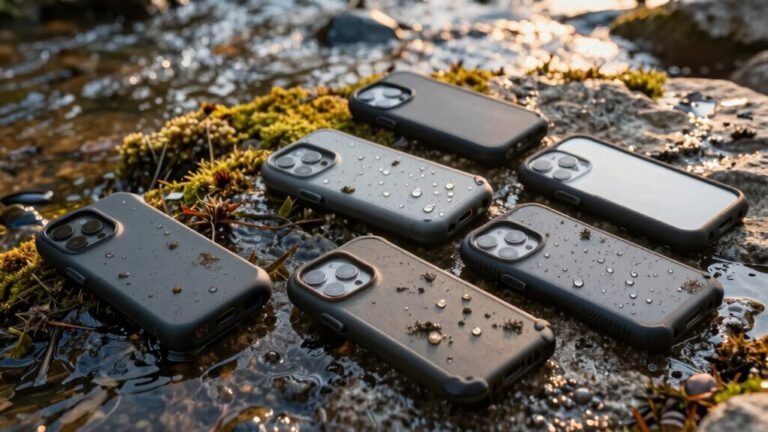
- Wrap it up: Use an insulated case like a Phoozy or a fleece-lined pouch; it’s like a winter coat for your phone (no tiny arms required).
- Limit screen time outdoors: Pop it out just for quick checks, then tuck it back—think of your phone as a shy turtle that thrives in warmth!
Keep it warm, keep it alive, and never miss a trail pic again.
Reduce Screen Timeout Duration
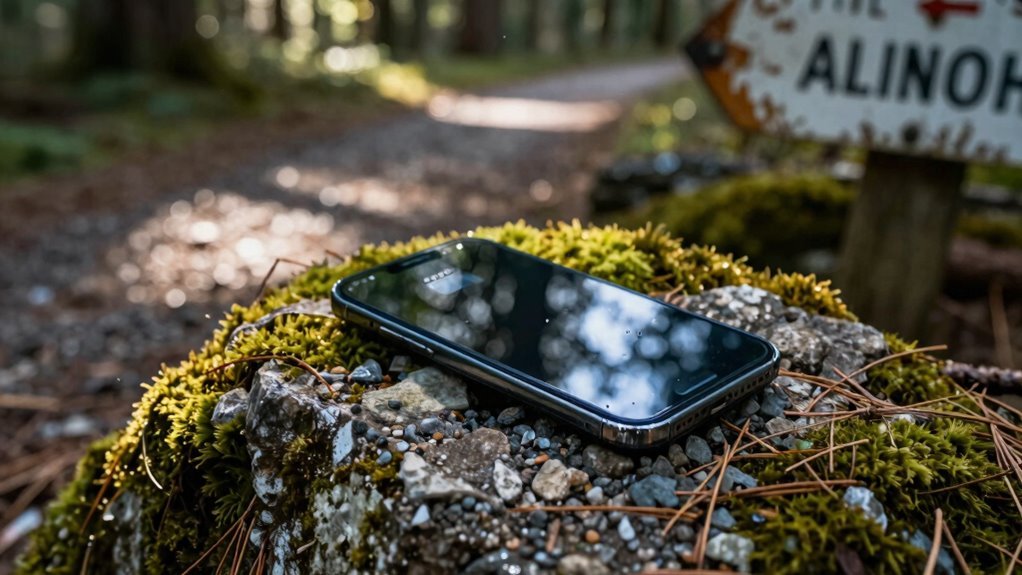
Why let your phone’s screen guzzle power like a thirsty hiker at a water station? You’re better off cutting that screen time short—15 to 30 seconds is sweet for saving juice.
The display eats battery fast, so the sooner it sleeps, the more power you keep for when you really need it.
On the trail, you’re not staring at your phone every second, right? Then why keep the screen blazing?
Ditch those 5- or 10-minute timeouts—they’re pure power waste.
Just hop into Settings > Display > Screen timeout and pick 15 or 30 seconds.
Boom! Pair it with lower brightness or dark mode on OLED screens and feel that battery life stretch.
Even cooler, battery saver can auto-shorten it to 30 seconds.
Skip the “Never” option—it’s a one-way ticket to drained-town, especially if your phone’s cooking in your pocket.
Smart timeout tweaks mean more map checks, photos, and emergency use when it counts.
Small change, big win!
Use a Portable Charger Strategically
While your phone might be your lifeline on the trail, that power bank in your pack is the real unsung hero—so don’t just toss in any old charger and hope for the best.
Choose wisely and charge smartly to keep your gear powered without weighing yourself down. Here’s how to use it like a pro:
- Match capacity to your trip: 5,000 mAh for quick overnights, 10,000 for standard hikes, or 20,000 for long stretches between towns—just remember, real usable juice is about 60% of what’s printed.
- Charge *before* town energy runs out: Show up with some juice left so you’re not camped at the diner outlet like a modern-day hermit.
- Grab a fast-charging, multi-port adapter: Saves time, saves spots, and keeps you polite in crowded hostels.
Your phone may map the path, but your charger keeps you on it—don’t hike without a plan!
Frequently Asked Questions
Does Turning off Vibration Save Battery on Trails?
Yeah, turning off vibration saves battery on trails—every buzz saps power you’ll want later.
That little motor works hard, and all those taps add up fast.
Kill haptic feedback, silence unnecessary alerts, and let your phone do less dancing.
You’ll stretch battery life without even trying.
Plus, your pocket will stay quiet—no more phantom buzzes making you think you’ve got epic trail news.
Sweet, right?
Can I Use Battery-Saving Apps Effectively Outdoors?
Yeah, you can use battery-saving apps outdoors, but don’t expect magic.
Think of them like snack-sized power boosts—not full meals.
Greenify’s hibernation gave one hiker 27% extra juice, but rocky terrain and spotty signals still drained his phone fast.
They help by stopping sneaky ads and background apps, sure, but turning down brightness and killing GPS?
That’s where you’ll really shine—like a trail-ready superhero with slightly better battery life.
How Often Should I Power Cycle My Phone Hiking?
You should power cycle your phone every night—it’s quick, easy, and gives your device a fresh start.
Just turn it off while you sleep and reboot in the morning.
It saves battery, clears out digital clutter, and feels like a mini nap for your phone—only better, because it doesn’t snore.
Do it daily, and you’ll likely stretch your charge way longer.
Trust me, your phone will thank you!
Does Airplane Mode Stop GPS Tracking Completely?
No, airplane mode doesn’t stop GPS tracking completely—you’re still picking up satellite signals like a mini space detective.
Your phone quietly listens to satellites, so navigation apps work, and your location updates onscreen.
But here’s the fun twist: nobody else can see you, since no Wi-Fi or cellular means no check-ins with the outside world.
You’re ghosting everyone, but still finding your way—like a stealthy, tech-savvy hiker.
Will Dark Mode Help Conserve Battery on AMOLED Screens?
Yes, dark mode absolutely saves battery on AMOLED screens—you’re turning off pixels, not just dimming them.
At full brightness, you’ll slash power use by up to 60%, like flipping a switch.
Even dark gray works almost as well as pure black, so pick your vibe.
It’s not magic, it’s science—and your battery will thank you later.
Who knew going dark felt so good?
Conclusion
You’re not scaling Everest, but your phone might think so. Treat it like a trusty sidekick—keep it warm, dimmed, and off the Wi-Fi hunt. Battery Saver’s your sherpa; use it early. Maps downloaded? Perfect—no signal scavenger hunts. Short screen timeout, fewer background apps, and boom: you’ve just stretched juice like a survival ninja. Throw in a portable charger, and congrats, you’re the MacGyver of trail tech.
References
- https://www.youtube.com/watch?v=cOGelXgk3jk
- https://www.purdue.edu/newsroom/archive/releases/2021/Q3/dark-mode-may-not-save-your-phones-battery-life-as-much-as-you-think
- https://www.lenovo.com/ie/en/glossary/how-to-turn-off-auto-brightness-on-pc/
- https://www.android.com/intl/en_in/articles/tips-to-extend-android-battery-life/
- https://paget96projects.com/blog/how-your-phones-display-affects-battery-life-panel-types-brightness-and-smart-settings
- https://www.youtube.com/watch?v=iTK8X_8Rsww
- https://www.alpinesavvy.com/blog/top-tips-longer-phone-battery-life-in-the-backcountry
- https://faroutguides.com/10-tips-to-save-your-phone-battery-on-trail/
- https://www.rei.com/learn/expert-advice/how-to-save-phone-battery.html
- https://support.apple.com/guide/iphone/save-battery-life-with-power-modes-on-iphone-iphcab9aecd1/ios