How to Use Offline Maps on Your Phone
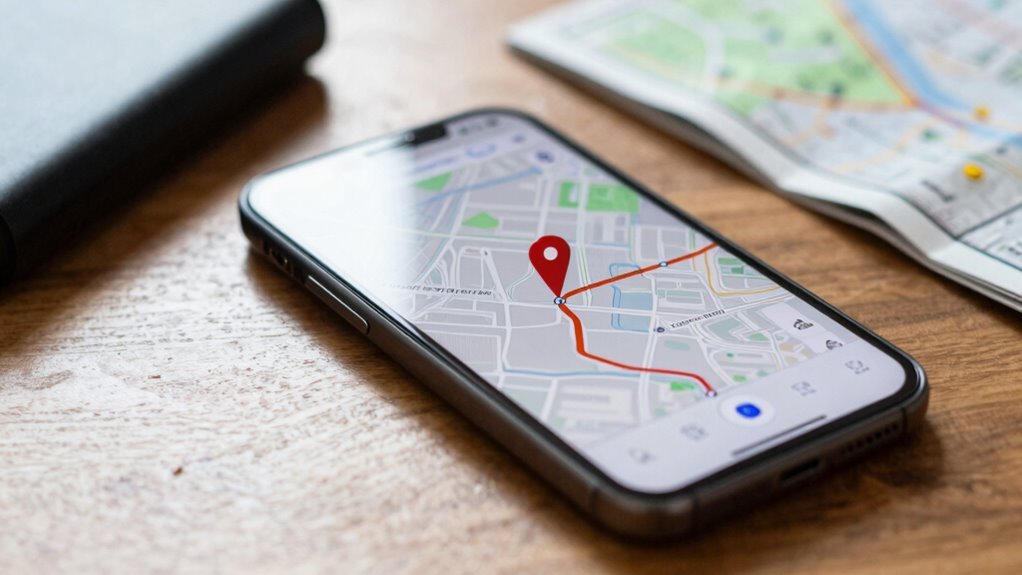
You’re all set for adventure when you download offline maps on your phone. Offline maps let you navigate without Wi-Fi or signal, perfect for remote hikes or international travel.
Open Google or Apple Maps, tap your destination, and hit Download—boom, you’re covered. Pick a small area to save space, and remember to update your offline maps every few weeks since they expire.
These handy maps avoid roaming fees, work in airplane mode, and can even show nearby coffee spots. And that’s just the start—there’s more fun where that came from.
Why Offline Maps Are Essential for Travelers
Ever landed in a new country and watched your phone buzz with roaming charges the second you open a map? Yikes, right?
Offline maps save your wallet and your trip.
You’re not stuck paying for data abroad or burning through your monthly plan just to find a coffee shop.
These smart little tools work without Wi-Fi or signal, so you’re covered in remote areas, underground tunnels, or even during emergencies.
No service? No problem.
They load fast, chew less battery, and keep you finding your way smoothly.
Plus, you’ll still see restaurants, ATMs, trails, and cool photo spots—even offline.
Imagine confidently wandering mountain paths or city alleys, knowing you’ve got directions, details, and discovery at your fingertips.
It’s like packing a safety net for your sense of adventure.
Who knew being prepared could feel this fun?
And since they don’t rely on constant data, offline maps are cost-effective—perfect for staying connected without overspending.
How to Download Offline Maps on Google Maps
Once you’ve got the Google Maps app open on your Android or iPhone, you’re just a few taps away from downloading your own piece of the world—no internet required.
Make sure you’re signed in, not in Incognito mode, and zoom in on your destination, like San Francisco.
Tap your profile picture, select Offline Maps, then tap “Select your own map.”
Move the blue box over the area you want, pinch to resize, and name it—maybe “My Adventure Zone.”
Google’ll show the size (usually under 300 MB—phew).
Hit Download, and boom, you’re set.
Need more maps? Just repeat.
Use “ok maps” in search to quickly save your current view.
Rename maps anytime with the pencil icon.
Keep them fresh with auto-updates enabled, and delete old ones with a few taps.
Offline maps expire after 30 days unless updated, so remember to refresh them regularly to avoid losing access. This ensures your navigation stays accurate and up-to-date, even when you’re offline. 30-day expiration.
Setting Up Offline Maps on Apple Maps
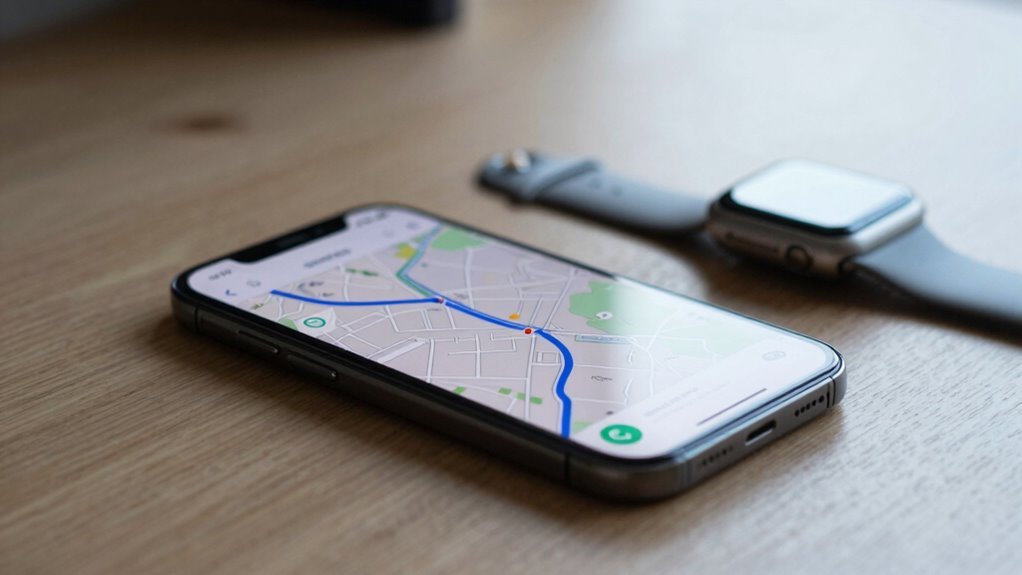
Exploring new places without worrying about spotty service? Apple Maps has your back with offline maps—just tap your picture or initials next to the search field, then choose Offline Maps.
It’s like packing a map snack for your phone!
- Download a new map by searching your destination, tapping the info card, then selecting Download.
- Pinch or zoom to adjust the area, and confirm—it’ll download over Wi-Fi or cellular.
- Edit or delete maps anytime. Just tap the map in your list, resize it, rename it (no need to stick with “Map #7”), or delete it if you’re done adventuring there.
- Tweak settings to download only on Wi-Fi, enable automatic updates, or turn on Optimize Storage so your phone doesn’t hoard old maps like souvenirs.
Once it’s downloaded, you’re golden—navigate, walk, cycle, or transit offline with ease. Offline maps are available in iOS 17 and later, so make sure your device runs iOS 17 or later to access this feature.
Choosing the Right Area Size for Offline Download
When you’re prepping your phone for adventure, picking the right map size is like packing the perfect backpack—too much and you’re weighed down, too little and you’ll run out of snacks.
Aim for just what you’ll need: a single city takes hundreds of MB, while whole regions can hog several GB.
If you’re eyeing Spain, your phone might nudge you to scale back.
Go for smaller, specific areas instead of huge zones—it saves space and keeps things snappy.
Use vector tiles and compression; they shrink files by up to 80% without losing detail.
Slide the detail down for big areas, crank it up for tiny towns.
Got an SD card? Great! Offload maps there.
And remember, you can store up to 16 offline areas, so plan wisely—your phone (and your hike) will thank you.
Updating Your Offline Maps Regularly
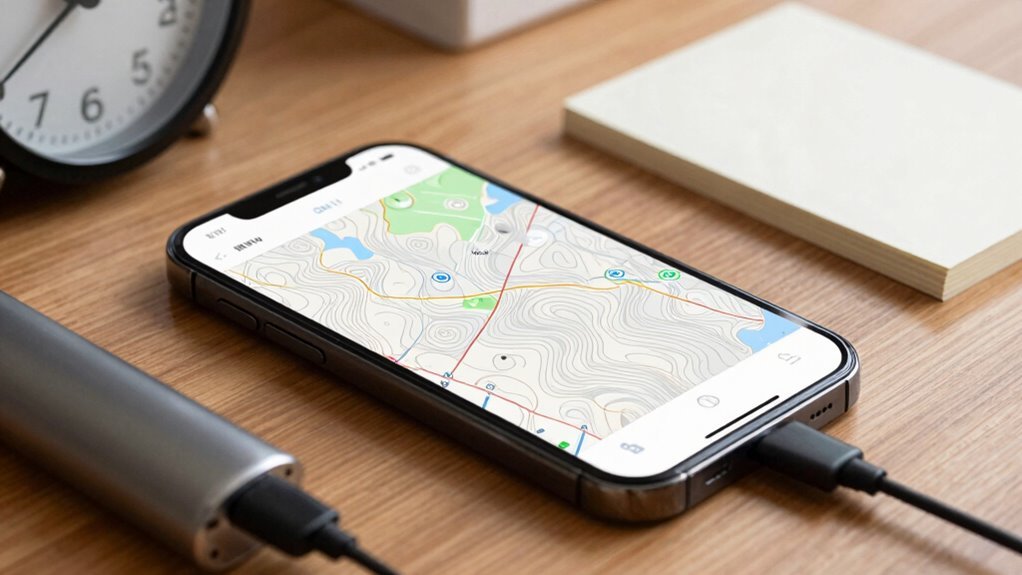
You’ve got your offline maps downloaded and you’re ready to roll—awesome!
But don’t forget, those maps won’t stay fresh forever.
To keep them accurate and working smoothly, you’ll want to update them regularly.
Here’s how to stay ahead of the game:
- Turn on auto-updates in Google Maps or Apple Maps so your phone refreshes maps over Wi-Fi, no hassle needed.
- Check expiration dates—Google Maps files expire after 15 days without updates, and RV LIFE maps last 6 months.
- Update manually when needed, especially if you’ve disabled auto-updates or your phone missed a refresh.
Outdated maps can turn your adventure into a wild goose chase—don’t let that happen!
A quick update keeps you from getting lost and stuck asking strangers for directions (cute, but not ideal).
Keep your maps sharp, your route clearer, and your travels stress-free.
Navigating With Offline Maps During Your Trip
Gliding through unfamiliar towns with your phone as your co-pilot just got way easier—especially when you’ve got offline maps in your back pocket.
Open Google Maps, tap your profile, then delve into Offline maps to pick your saved zone.
Search a spot inside that area, hit Directions, and boom—you’re finding your way with no internet needed.
GPS still tracks you, so you won’t end up lost in a cow pasture.
Just make sure your whole route fits inside the downloaded map, or you’ll be waving at strangers for help.
You can add stops, drag waypoints, or bookmark cafes and hotels ahead of time.
No live traffic or alternate routes, though—sorry, no magic here.
But airplane mode? Works like a charm.
Toss on subway layers or trail views for extra flair.
Think of it as your digital compass, always ready, never judging your questionable turns.
Managing Storage Space for Offline Maps
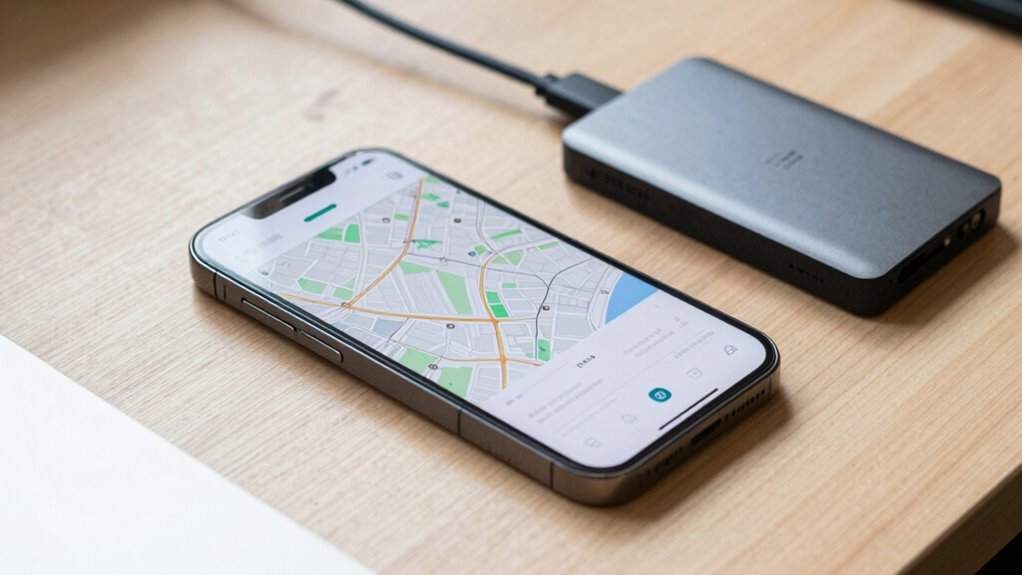
If you’re mapping out adventures without a constant internet safety net, keeping your offline maps in check doesn’t have to eat up all your phone’s space—think of it like packing a suitcase: you want everything you need.
but not so much that you can’t close the lid.
- Tap into your app’s settings to move maps to an SD card (just don’t forget to plug it in first!) or trim old trips like digital souvenirs you no longer need.
- Be smart about what you download—zoom in on just the city center, not the whole country, unless you’re secretly planning a epic road quest.
Best Apps for Offline Navigation Beyond Google and Apple
Now that you’ve trimmed the digital clutter and freed up space for only the maps you truly need, it’s time to explore the real stars of offline navigation—the apps that don’t just work without Wi-Fi, they thrive on it.
Download entire countries with HERE WeGo—no joke, even traffic and parking info come along for the ride.
If privacy’s your thing, OsmAnd’s got your back: open-source, zero tracking, and fully customizable, like Google Maps went punk rock.
Organic Maps keeps it simple but smart, auto-updating maps and letting you shuttle favorites between devices.
And MAPS.ME? Over 140 million travelers trust it—not because it’s flashy, but because it just works, with voice-guided turns and rich detail in less space.
For the adventurers, Gaia GPS layers topographic, satellite, and weather data like a navigation wizard.
Or if you’re hauling cargo, Sygic’s built for big rigs.
Even Roadtrippers lets AllTrails+ users download maps—because who gets cell service in the middle of nowhere?
Frequently Asked Questions
Can I Use Offline Maps Without an Internet Connection at All?
Yeah, you can use offline maps without any internet connection once you’ve downloaded them.
Just grab the map over Wi-Fi, turn on GPS, and go—your phone’s location chip works fine offline.
You’ll see your position, get directions, and explore freely.
Apps like Organic Maps even guide you with voice cues, no signal needed.
Just don’t expect live traffic or last-minute reroutes.
Think of it like bringing a smart, pocket-sized explorer who *naps* online but thrives offline!
Are Offline Maps Available for All Countries and Regions?
You’ve got options almost everywhere, but no, not every country or region has flawless offline maps—sorry, Santa!
Google covers 250 spots, Apple over 200, and Maps.me uses crowd-powered OpenStreetMap.
Some remote areas might wave at you blankly, especially in Sub-Saharan Africa.
But hey, you can still grab whole countries or custom chunks.
Just tap, download, and go—adventure waits, and your phone won’t whine about Wi-Fi!
Do Offline Maps Include Real-Time Traffic and Speed Limit Data?
Nope, real-time traffic and speed limit data won’t tag along when you go offline—think of them as clingy friends who need constant Wi-Fi hugs.
You’ll still navigate smoothly, but live updates? Not a chance.
Apps like Google Maps and Waze leave those features online.
HERE WeGo and MAPS.ME get you far without internet, but stay alert: speed traps and traffic jams hide in the shadows until you’re back online.
Pack patience, not expectations!
Can I Share My Offline Maps With Another Device?
no, you can’t directly share your offline maps with another device—each one’s on its own adventure.
you’ve gotta download the same area separately, even if it’s your own phone on a second try.
think of it like bookmarking your favorite spots: everyone needs their own copy.
it’s a tiny hassle, sure, but once it’s done, you’re golden and ready to roam without a signal.
How Accurate Are Walking Directions on Offline Maps?
You’ll find walking directions on offline maps pretty accurate, especially with apps like Google Maps or MAPS.ME.
Just remember, they’re not psychic—no live updates mean you might miss sudden detours or new construction.
GPS still works, but thick trees or tight city blocks can make your phone “lose its way” briefly.
Download maps fully, and you’ll stroll with confidence, almost like you’ve got a savvy local in your pocket—just don’t ask it for snack recommendations.
Conclusion
You’ve got offline maps now—how cool is that? Imagine 72% of travelers getting lost without them; don’t be that person with a spinning screen! Grabbing maps ahead of time means you’re never stranded, even in the middle of nowhere. Whether you’re hiking, road-tripping, or just dodging data fees, you’re ready. So download, explore, and smile—your phone’s got your back, even when the Wi-Fi’s out!
References
- https://geoawesome.com/2024s-best-offline-map-apps-ultimate-guide-for-travel-and-navigation/
- https://www.sygic.com/blog/2016/top-5-reasons-why-you-need-offline-navigation
- https://travelmugpodcast.com/why-you-should-download-offline-google-maps/
- https://www.here.com/learn/blog/10-reasons-offline-maps-make-apps-world-beaters
- https://discussions.apple.com/thread/255173350
- https://community.ricksteves.com/travel-forum/tech-tips/offline-maps
- https://www.esri.com/arcgis-blog/products/arcgis-pro/data-management/introduction-into-offline-map-areas-prepared-ahead-of-time
- https://pmc.ncbi.nlm.nih.gov/articles/PMC10208339/
- https://mapmetrics.org/zh/blog/why-offline-maps-are-a-game-changer/
- https://www.eskimo.travel/en/blog/how-to-download-google-maps-offline